Nonconformance
An NC closes once, and only when it’s finished.
A nonconformance is raised as a draft, opened into its review and closed behind five server-checked gates and an electronic signature. Its status is guarded by the database, so a client can’t move it by writing to it.
The close that refuses
See an NC refuse to close.
Closing a nonconformance is one guarded action. Here is what happens when the owner tries too early, and what it takes to get through.
Step 1: Open Open
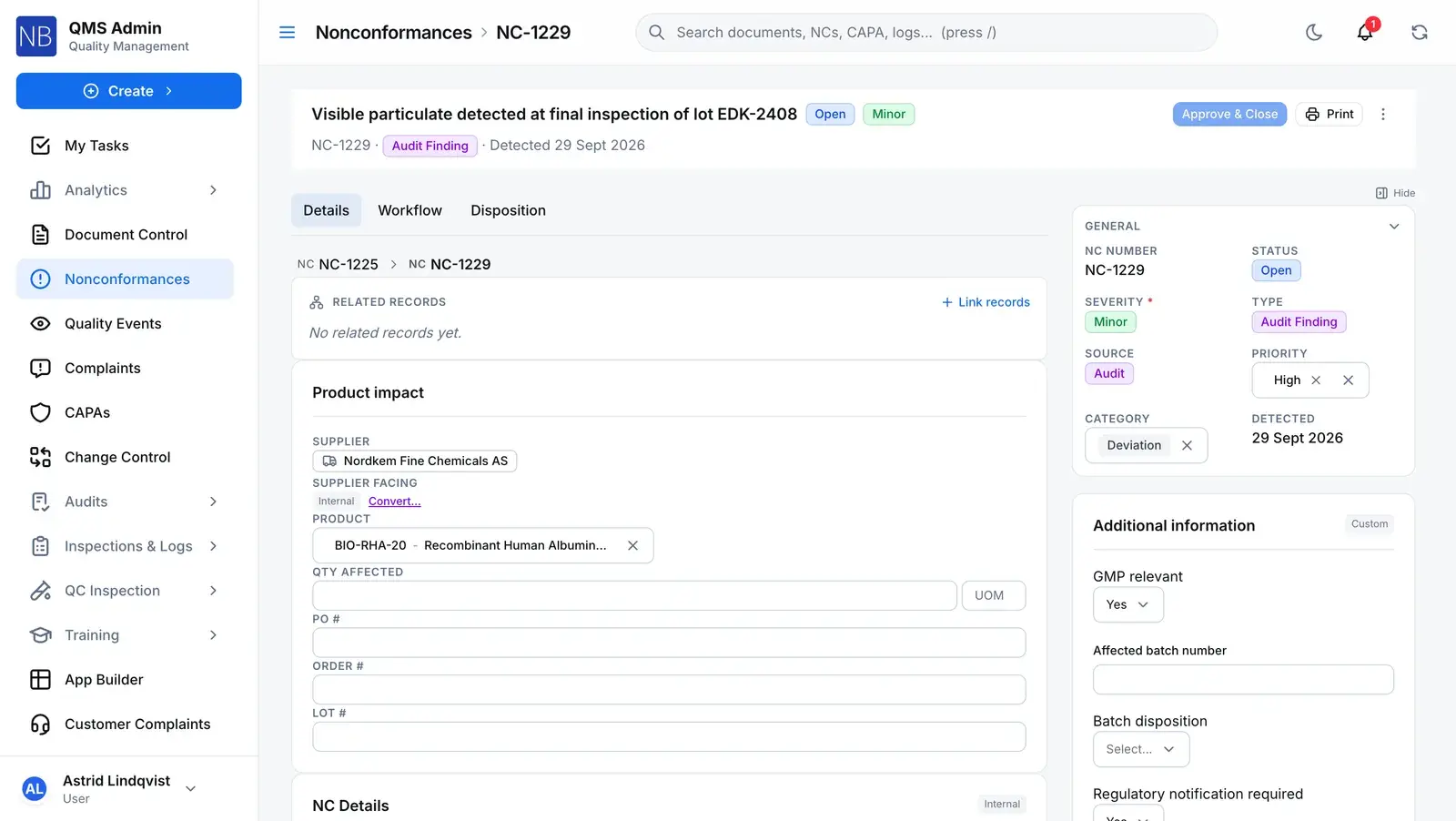
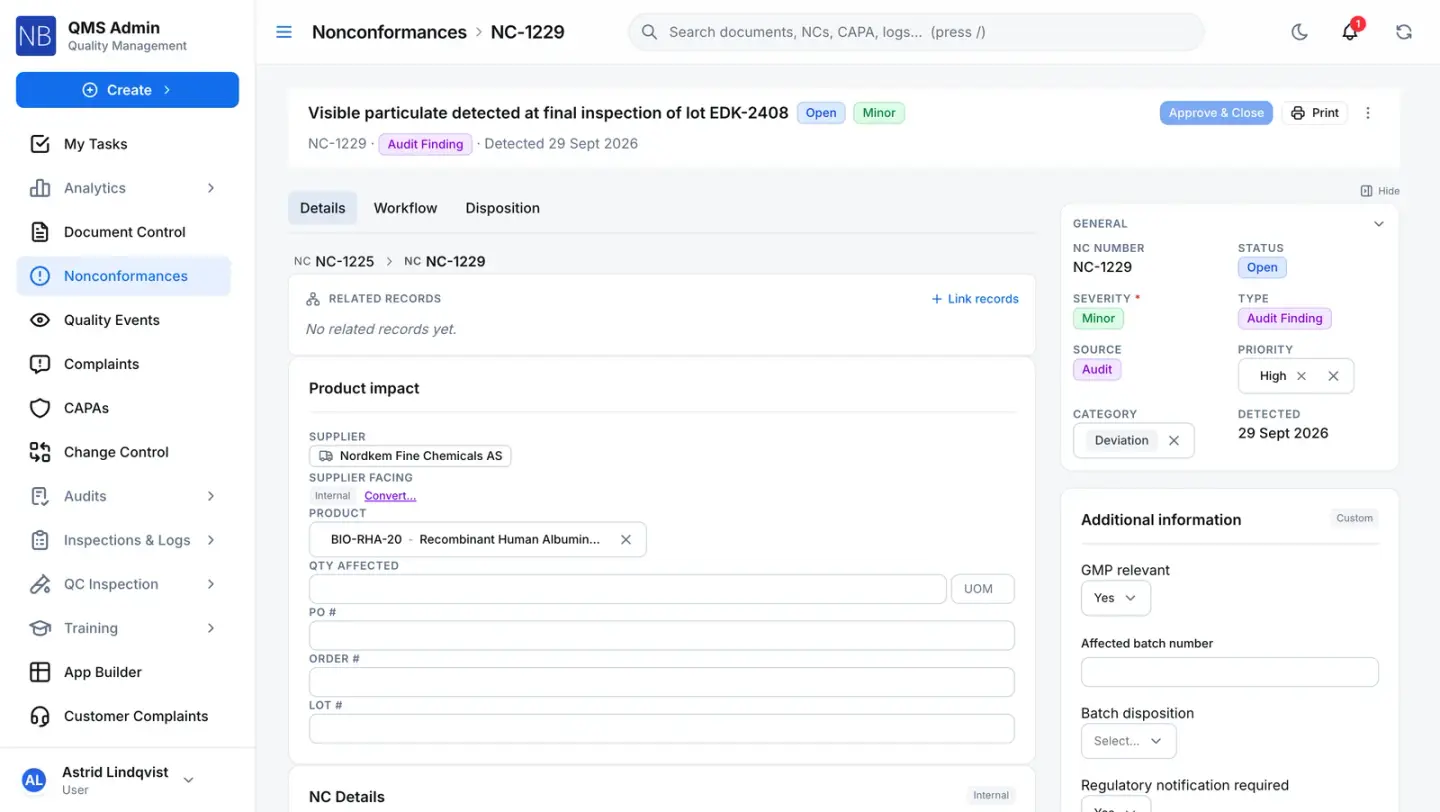
The NC is open, and complete enough to be.
A draft can be saved with little more than a title. To open, the database requires a severity, type, source, site, department, owner and detection date, so an open NC is never half-described.
Database refusesNC-1229 · Open 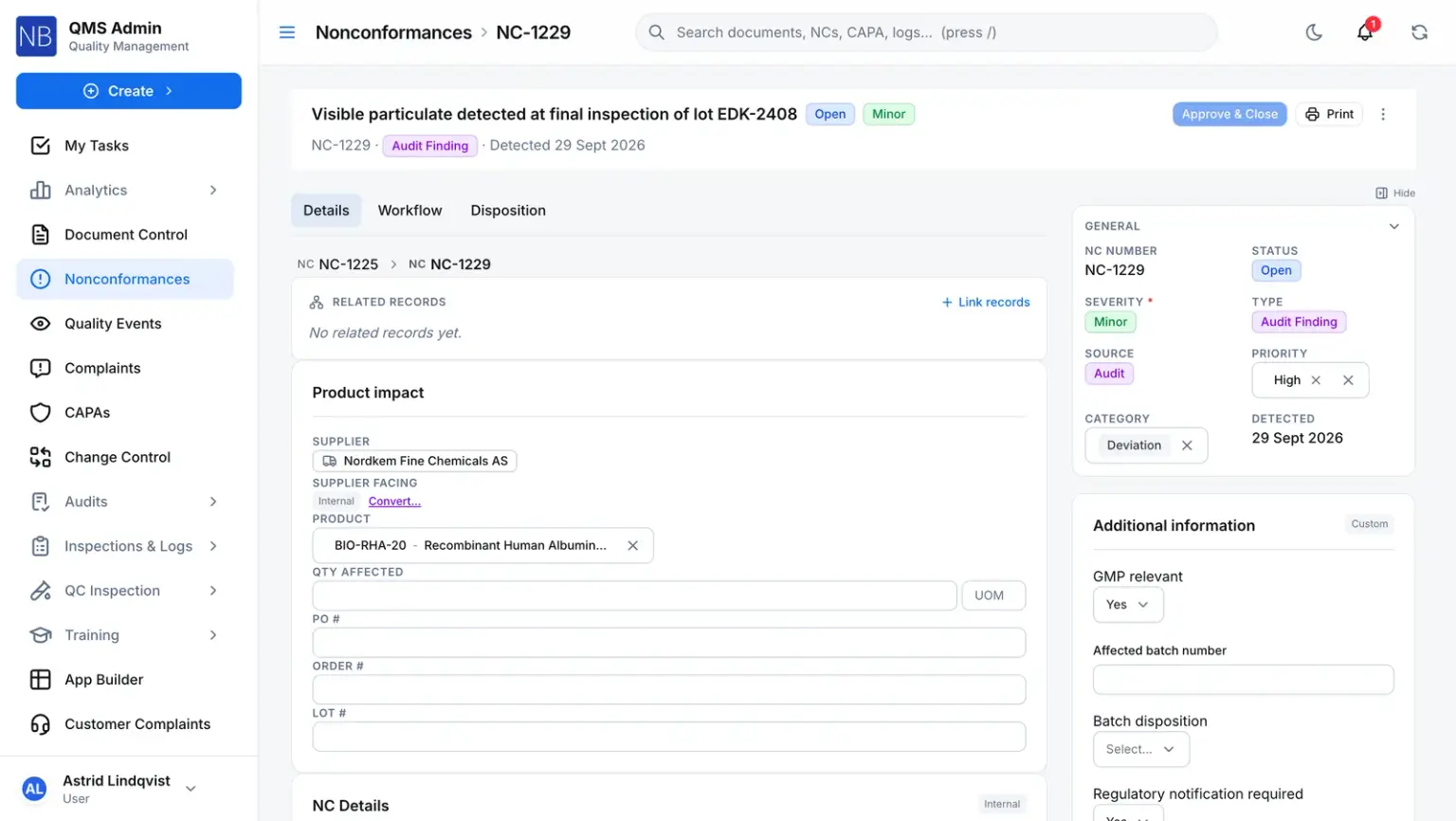
Step 2: Refused Open
The owner tries to close it. The server says no.
The steps are done and a disposition is chosen, but its notes are blank. The close is refused with a message that names the gap: “Disposition notes are required before marking complete.” Nothing is signed and the status doesn’t move.
Server refusesNC-1229 · Close refused Approve & closeNC-1229 OpenRefused:Disposition notes are required before marking complete
Checked in order, stops at the first miss
- 1Every workflow step resolved Met
- 2A disposition Met
- 3Disposition notes Missing
- 4A linked CAPA Not checked
- 5The cost of the NC Not checked
Step 3: Five gates Open
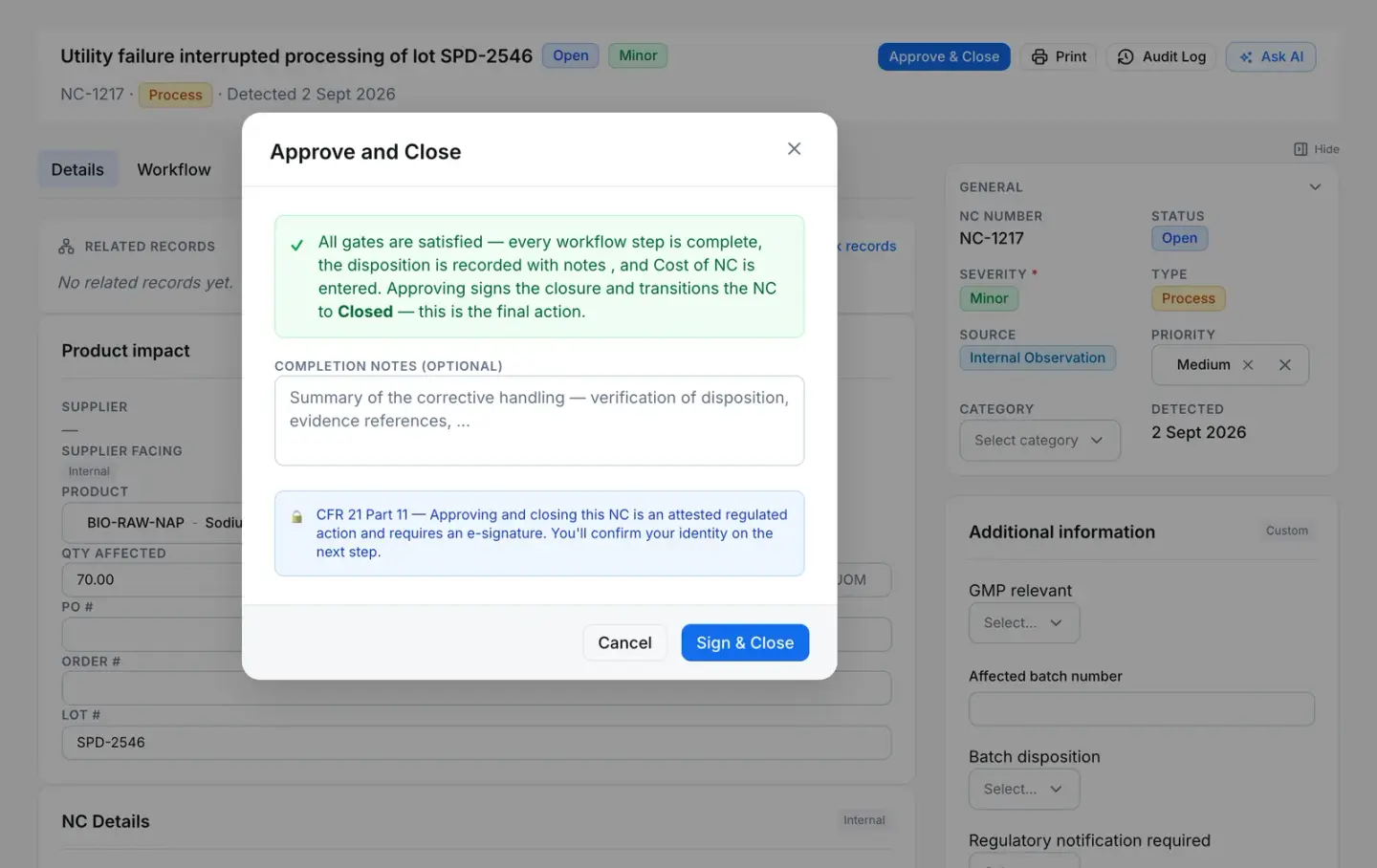
Five things must be true before it closes.
The server checks them in this order and stops at the first miss. Before any of them, your role has to grant closing on this NC.
1 Every workflow step resolved
Each step approved, skipped or cancelled. A scheduled effectiveness check is the one step allowed to run on after the close.
2 A disposition
Chosen from the list your own quality team maintains.
3 Disposition notes
The reasoning, written down. Blank or whitespace doesn’t count.
4 A linked CAPA
At least one CAPA raised from this NC.
5 The cost of the NC
Rework, scrap and return to supplier track cost in the starting list.
NC-1217 · Approve and close 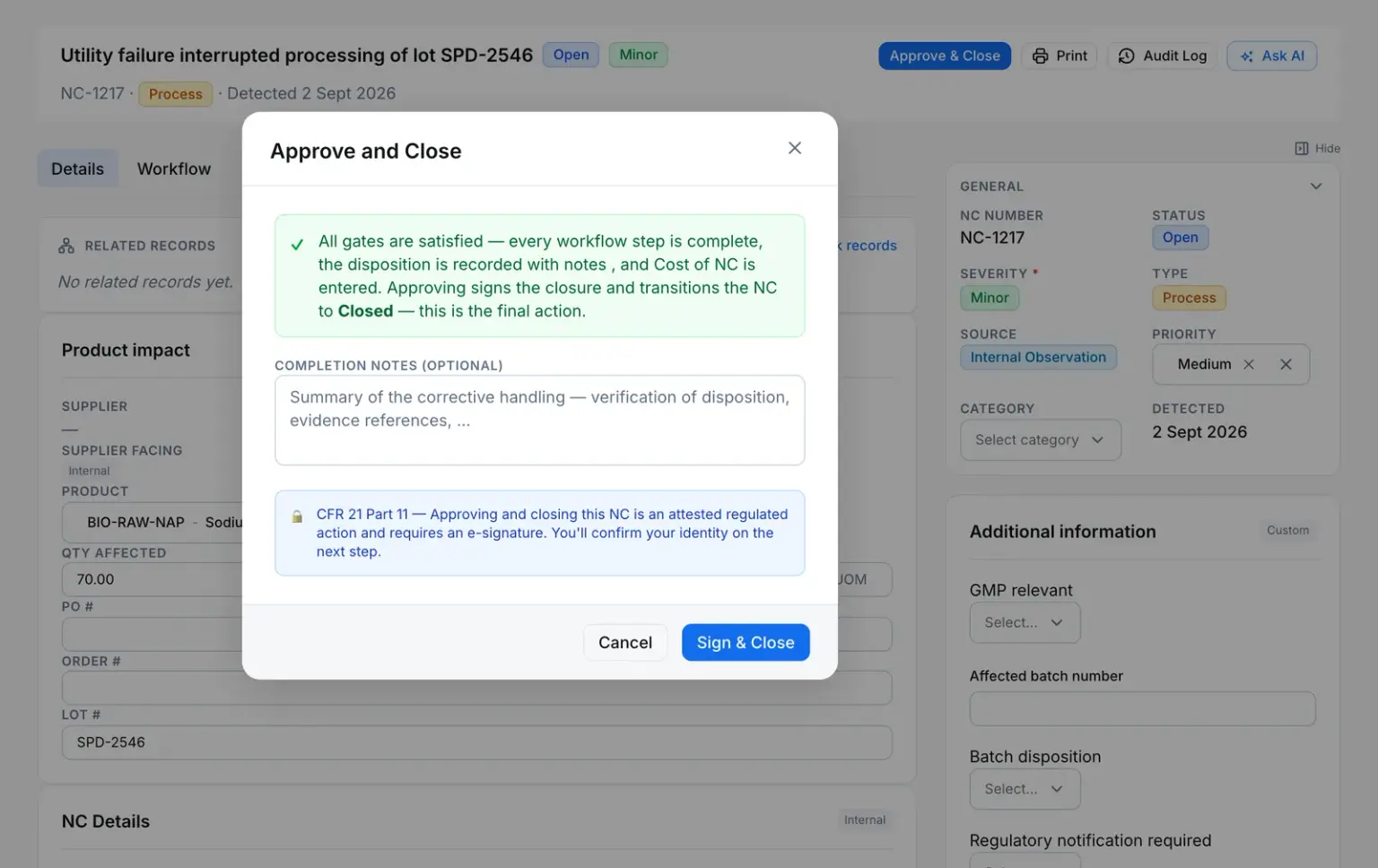
Step 4: Signature Open
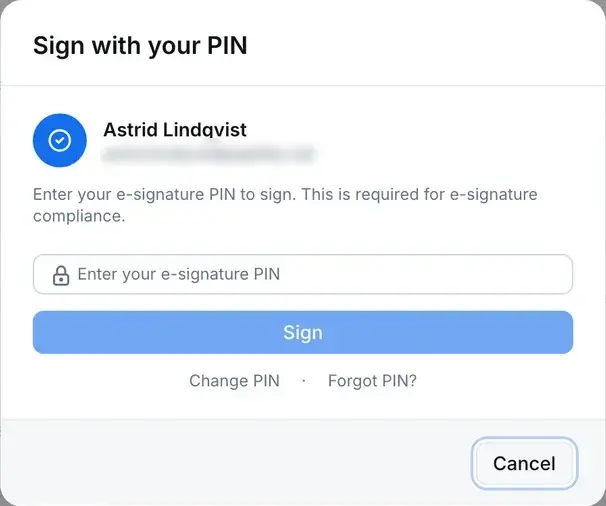
Closing asks who you are again.
The owner re-authenticates with a PIN, a password or your identity provider. The signature is written with the NC as its subject and the meaning “closed”, in the same transaction as the status change, so a failed signature closes nothing.
Server refusesE-signature 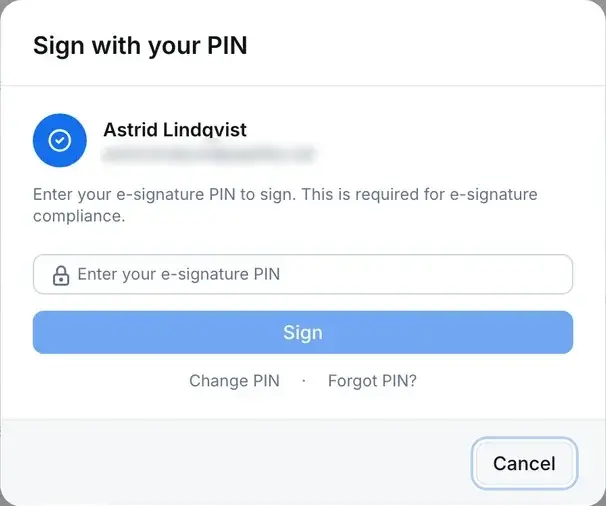
Step 5: Closed Closed
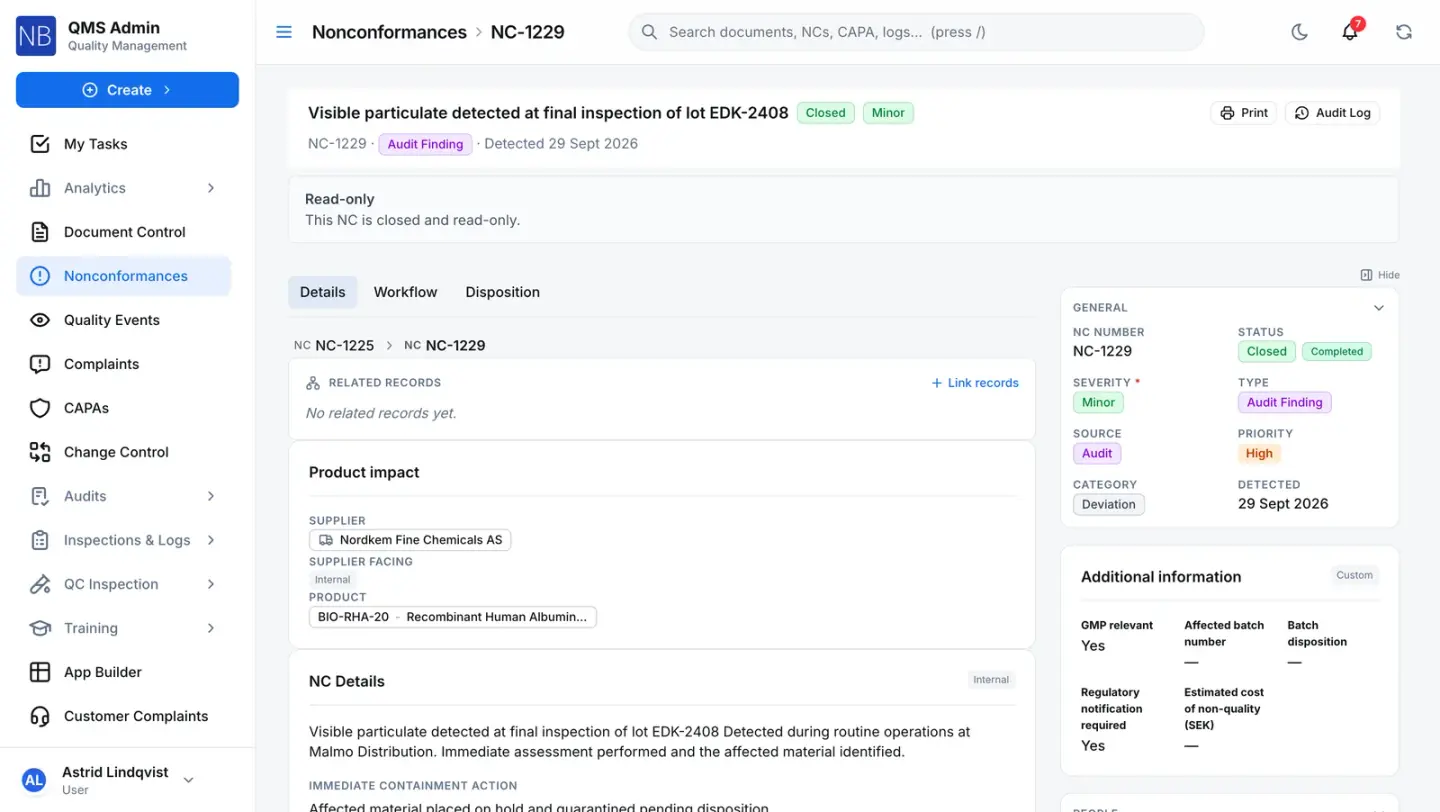
Closed, and read-only.
The app offers no way to reopen a closed NC, and a client writing to the database directly can’t change its status at all. If the problem comes back, it becomes a new NC or goes to the CAPA already linked.
Database refusesNC-1229 · Closed 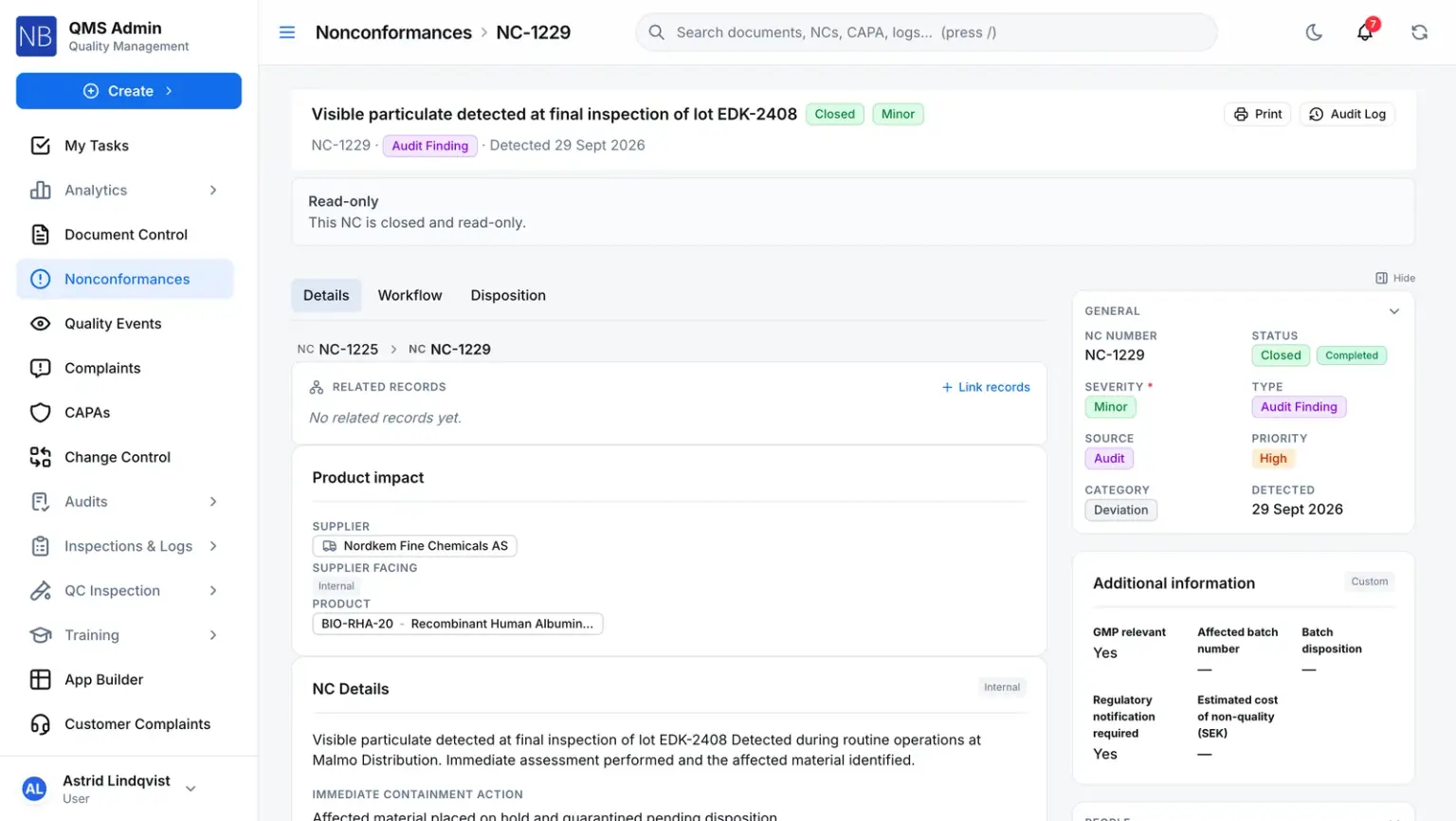
Disposition is yours
Your list of dispositions, and what each one asks for at close.
Disposition is a field on the record, not a stage in its lifecycle. Every new company starts with this list, and your administrators can rename, add or deactivate entries.
| Disposition | What it means | Cost required to close |
|---|---|---|
| Return to Supplier | Nonconforming material or product returned to the supplier | Yes |
| Rework | Item reworked to bring it into conformance | Yes |
| Scrap | Item scrapped and disposed of as waste | Yes |
| Accept / Use As Is | Item accepted with a documented concession and used without rework | No |
| Regrade | Item reclassified to a lower grade or specification | No |
| Quarantine Pending Review | Item quarantined while awaiting further review or decision | No |
The same list serves QC lot disposition, which adds Release for a clean pass. Every disposition also needs written notes before an NC can close.
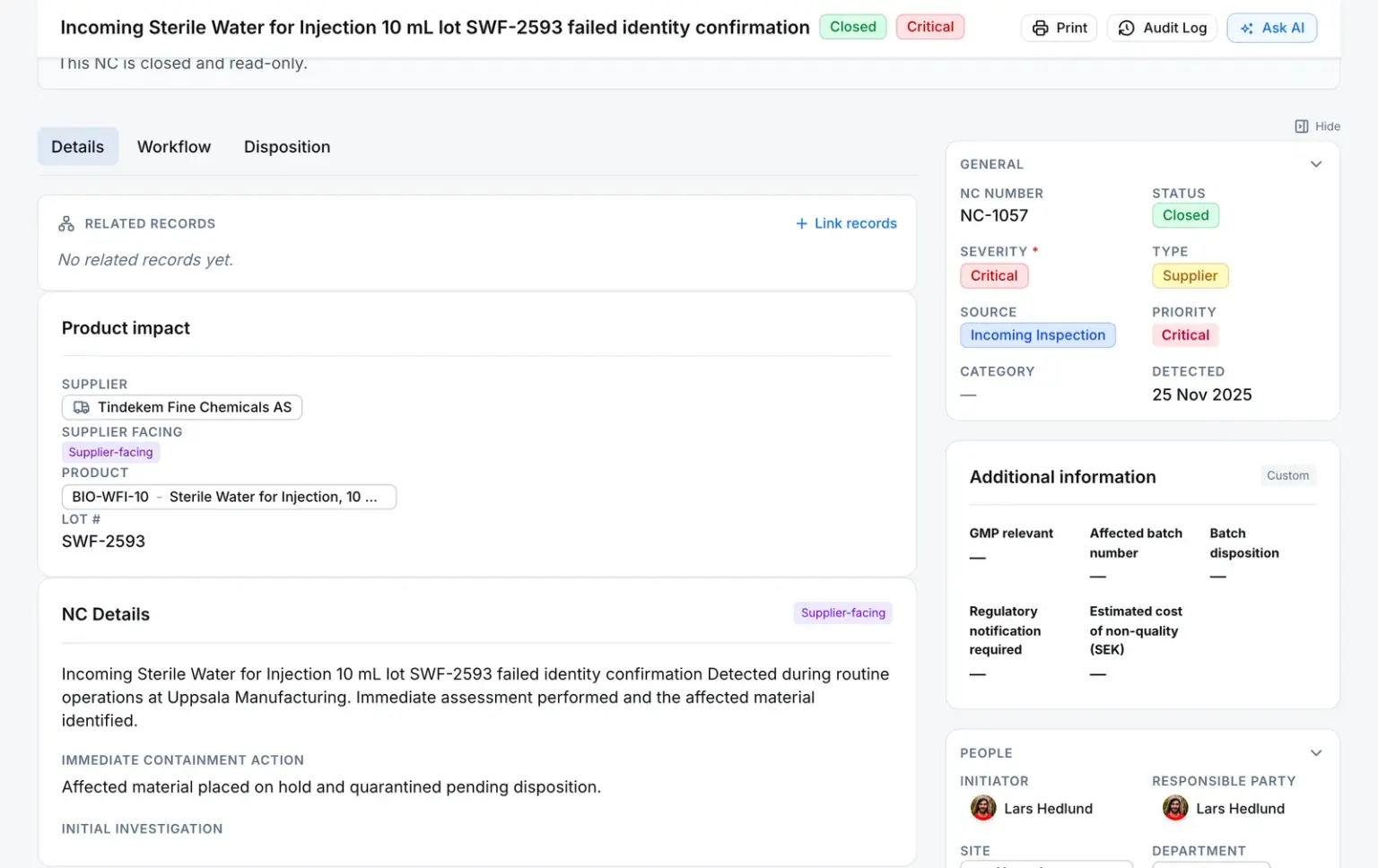
Supplier NC
Bring the supplier in without handing them the approval.
A supplier NC is an ordinary NC with a supplier on it. Raise it supplier-facing, or convert an open NC once you know whose material it was. Conversion keeps everything already entered and re-points the unfinished non-approval steps to the supplier’s portal user. Approval steps stay with your own people.
- A supplier-facing NC must name a supplier. The database refuses one that doesn’t.
- After draft, the supplier-facing flag changes only through the convert action, and the supplier on a submitted supplier-facing NC is locked
- The supplier answers for containment and correction. They don’t approve.
Every nonconformance moves only along
- Database refusesA client can create a draft and nothing else. Every status change comes from the server.
- Server refusesClosing is gated five ways and signed, with the NC as the signature’s subject
- Server refusesA rejected or sent-back review returns the NC to Draft
- There’s no cancel action for an NC yet. The Cancelled status exists but nothing writes it.
Connected records
Where a nonconformance comes from, and what it leads to
Each link is stored, and visible from both records.
Comes from — Nonconformance
Quality eventEscalated
The event records the NC it was escalated into, by whom and when, and the NC shows the event that caused it.
ComplaintConverted
A complaint converted to an NC stays linked to it — and several complaints can feed the same NC.
Inspection lotOpened
A rejected lot opens an NC that carries the failed results and the inspection report.
SupplierNamed
An NC can name the supplier it concerns, and the supplier’s record lists its NCs.
Audit findingRaised
The finding records the NC it produced, and the NC shows the audit it came from.
Leads to — Nonconformance
CAPACreated from
A CAPA raised from an NC keeps a pointer back to it, and the NC lists its CAPAs.
Change requestCreated from
A change raised from an NC is linked to it, visible from both records.
Any NC, CAPA, change request, internal complaint, quality event, inspection lot, document or custom-module record can also be linked by hand as related.
The rules, and who enforces them
What a nonconformance won’t let happen
- Status moves only along its lifecycle
- A trigger on the nonconformances table refuses any status change from a raw client, and any move outside the lifecycle from anyone. Draft straight to Closed isn’t in it.
- Database refuses
- An open NC is fully described
- Once it leaves draft, the record must carry severity, type, source, site, department, owner and detection date, or the write is refused.
- Database refuses
- The supplier stays the supplier
- A supplier-facing NC must name a supplier, and after draft neither the flag nor that supplier can be changed except by the convert action.
- Database refuses
- Closing needs the right, and the five gates
- Your role must grant closing on this NC at its scope. Then the steps, disposition, notes, CAPA and cost are checked in order.
- Server refuses
- The history can’t be edited
- Every change to an NC is written to the audit log by a database trigger, and the audit log refuses updates and deletions.
- Database refuses
For your auditor
Only people with Manage Access on the module can share.
Share this record
- Send it to anyone outside your company — no account needed.
- They open it with a 6-digit code sent to their own inbox.
- They see a read-only summary with its attachments, not your whole record.
- The link expires after 30 days, and you can withdraw it at any time.
- Every open is logged, so you can see who looked and when.
Or bundle it for an audit
For an external audit, collect effective documents and quality records into one Audit Records Package — one link and one code for each auditor.
Straight answers
The questions a quality manager asks first
Can a closed NC be reopened?
No. The app offers no reopen, and the trigger on the nonconformances table refuses any status change that doesn’t come from the server. If the deviation recurs or the fix fails, open a new NC or work it through the CAPA already linked to the closed one. Both carry their own dates, and the signed record stays as it was.
What happens when a reviewer rejects an NC?
It goes back to draft. An NC has no rejected status: a rejection, a send-back or a cancelled workflow returns the record to its owner, who corrects it and opens it again. The rejection is kept on the workflow and in the audit trail. Review steps run in order and reviewers can be picked while the NC is still a draft. An approval step can’t be cancelled, reopened or sent back, only rejected or reassigned.
Does every NC need a CAPA?
Only where you say so. Mark the NC as CAPA required and the close is refused until at least one CAPA raised from it exists. You can also create the CAPA in the same action as the NC, so both start linked. The remediation itself lives on the CAPA.
Is there an SLA or automatic escalation on an NC?
No. Nonconformances have no overdue scan, escalation or auto-close today. Review steps can carry an SLA in days, and each reviewer’s task lands in their own queue.