Documents
Every SOP, controlled and current.
Manage SOPs, policies and quality records with version history, signed approvals and a hash-verifiable snapshot of every effective version — so the document your team uses is always the one in force.
The version lifecycle
A version can only move where the database lets it
Every controlled document version walks the same graph. The moves below are the database’s own list — not a convention the interface follows.
7 states
- Draft
- In review
- Approved
- Effective
- Superseded
- Changes requested
- Rejected
11 legal moves
Move 1: Draftto In review
Move 2: In reviewto Draft
Move 3: In reviewto Approved
Move 4: Approvedto Effective
Move 5: In reviewto Effective
Move 6: Effectiveto Superseded
Move 7: In reviewto Rejected
Move 8: Rejectedto In review
Move 9: In reviewto Changes requestedNot offered in the app today
Move 10: Changes requestedto In reviewNot offered in the app today
Move 11: Changes requestedto DraftNot offered in the app today
Eleven moves are legal, and the database refuses every other one. It also refuses any status change that doesn’t come from the server: a version is created as a draft and moves only through review, approval and its effective date.
In force on any date, one version at a time
Each version holds the slot until the next one takes effect. Ask which SOP was in force on a given day and there is exactly one answer — with the PDF that was filed the day it took effect.
v1.0 Superseded
v2.0 Superseded
v3.0 Effective
v4.0 Draft
The moment a version takes effect
The previous version is superseded
A PDF snapshot is filed and hashed
Training goes out on that version
Electronic approvals
Every approval, signed by the person who gave it.
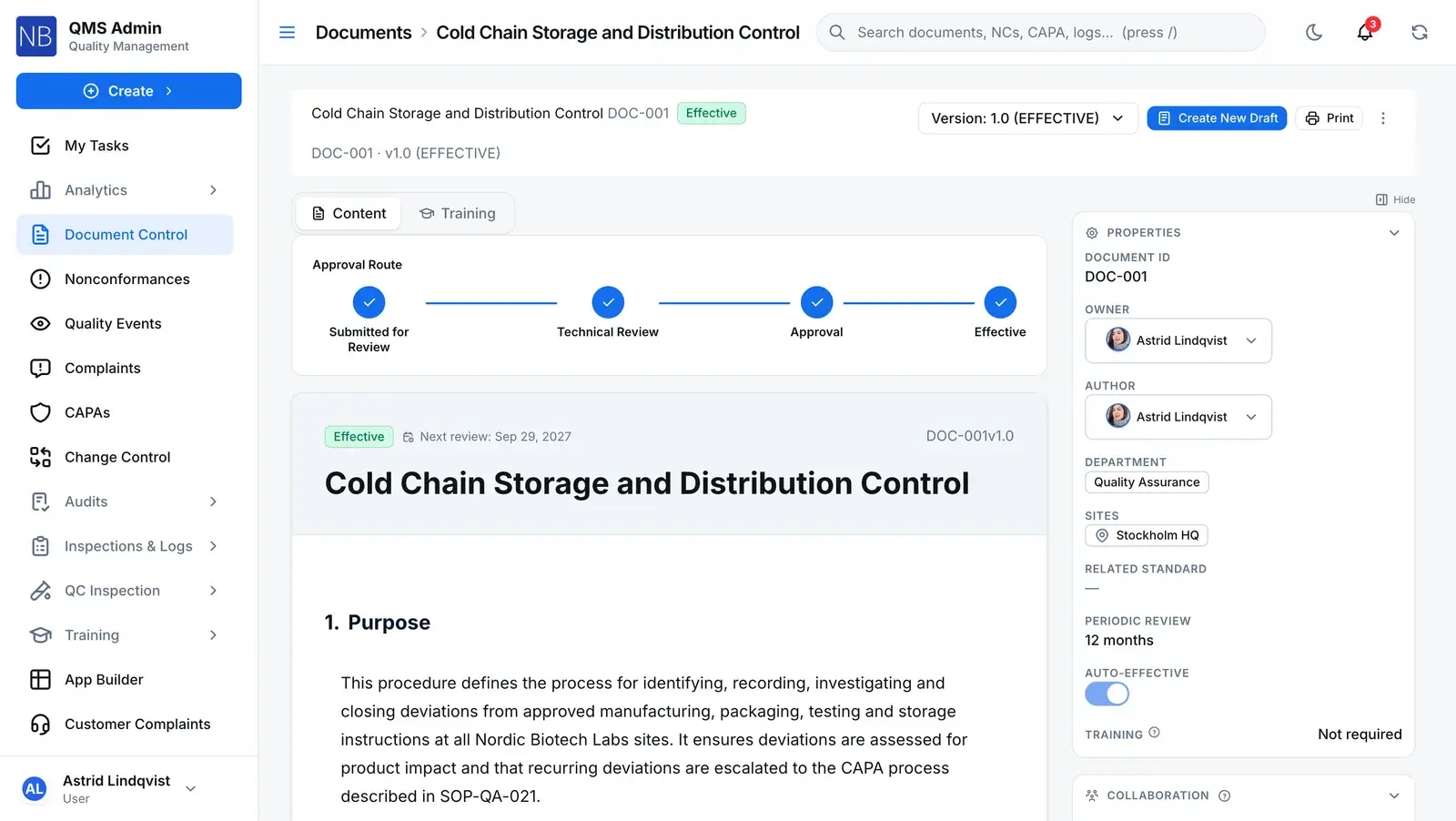
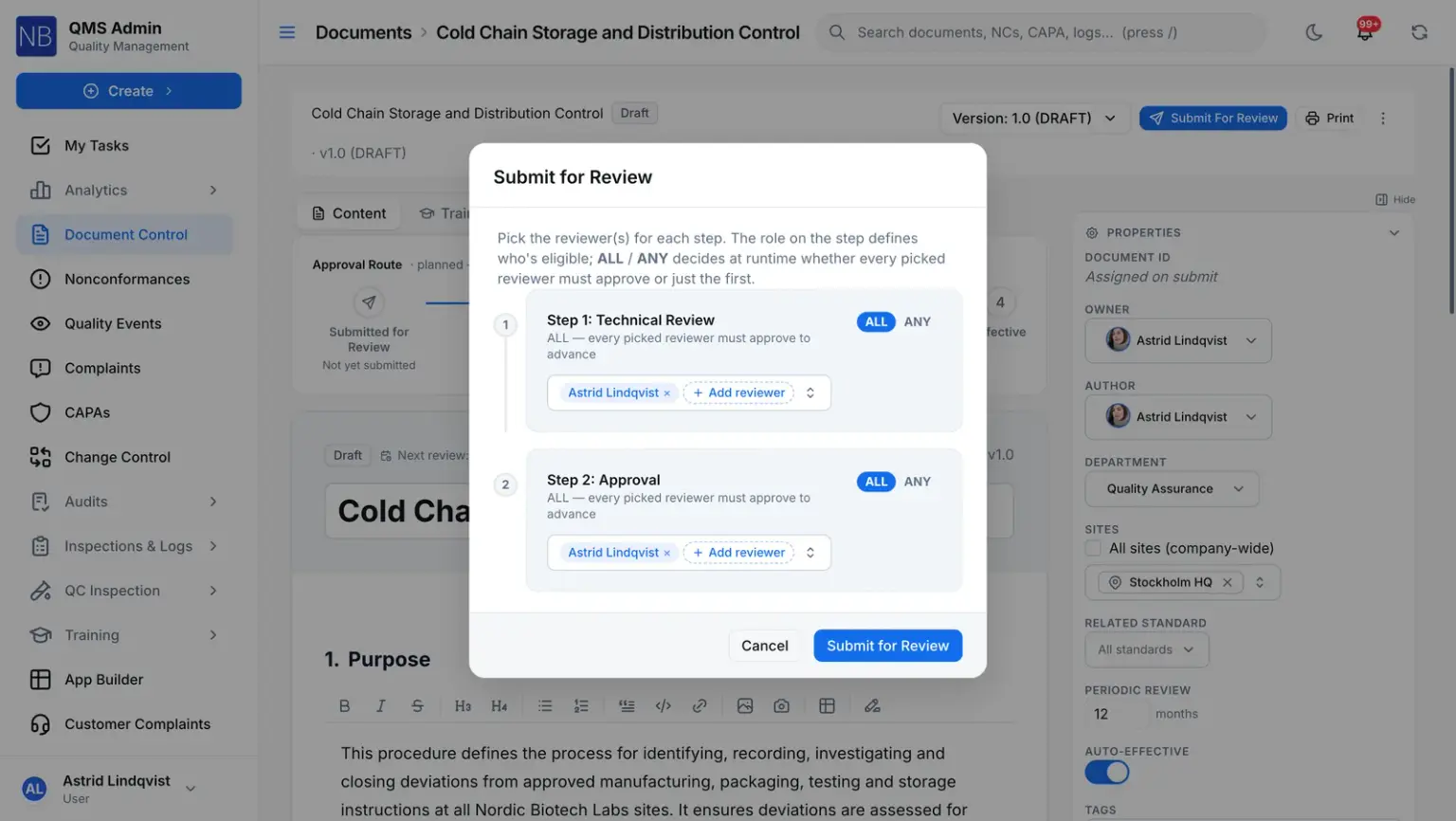
Route a version through your review workflow: steps in order, reviewers chosen by role or by name, and an all-or-any rule on each step. On steps that require a signature, the approver re-enters a dedicated signature PIN at the moment of signing, and the signature records who signed, what it means and when.
- Sequential steps with all-or-any approval
- Re-authentication at signing
- An approval already in flight keeps the rules it started under
Controlled copies
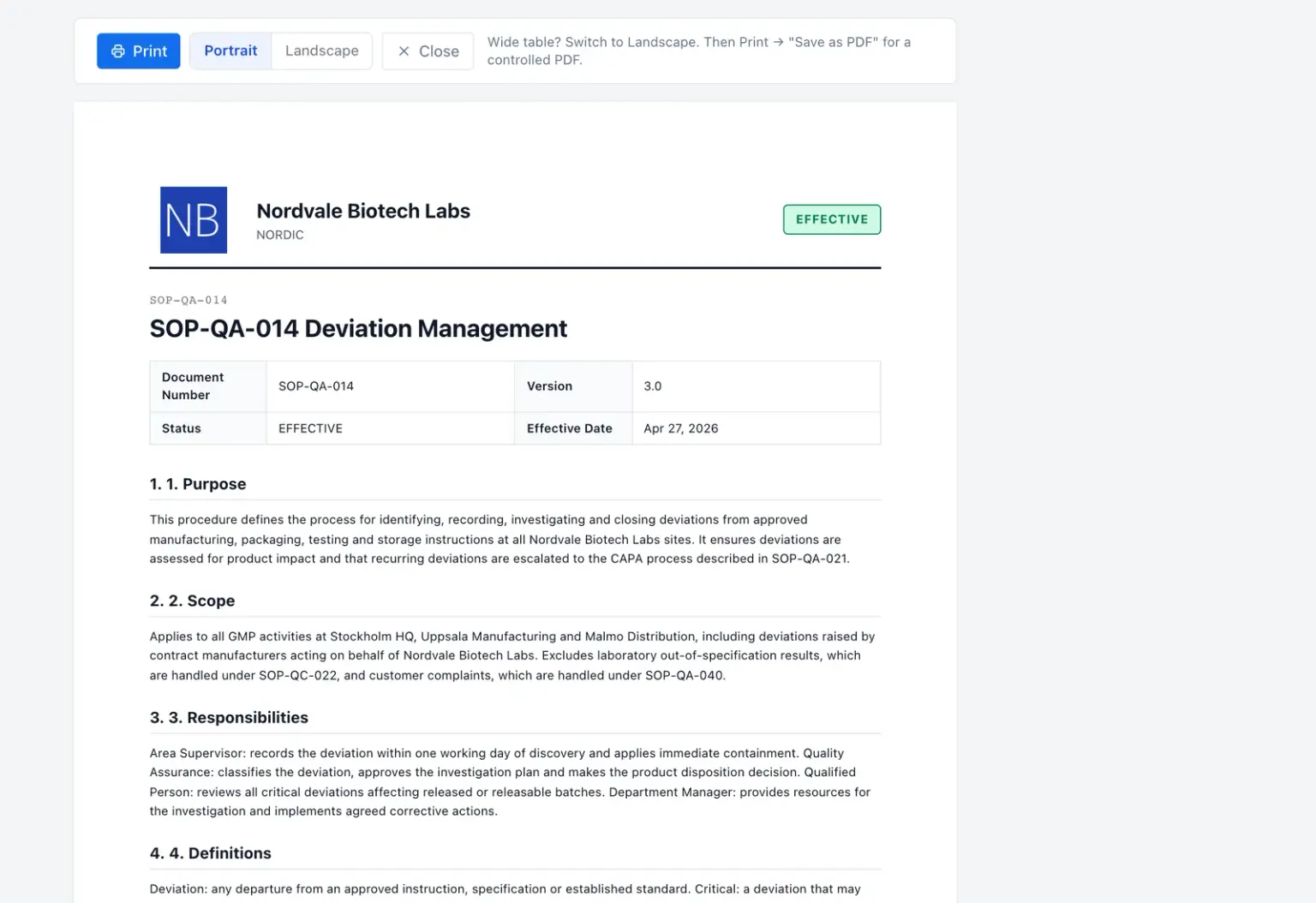
Every printed copy says which version it is.
The controlled print view puts the document number, version, status and effective date at the top of the copy. Behind it, the hashed PDF filed on the effective date is the record of exactly what was in force.
- Schedule a future effective date, or release on approval
- Every revision records its reason, type and impact
- Periodic review as a signed decision: no change, revise or retire
What the system enforces
The rules behind a controlled document
Each rule says where it lives — so you know which ones a misconfiguration can’t switch off.
- Created as a draft, moved only by the server
- A version can only be created as a draft, and its status can’t be changed by a direct data edit — only by submit, the approval workflow or its effective date.
- Database refuses
- One effective version per document
- The outgoing version is superseded in the same write, and a unique index refuses a second effective version even if two releases race.
- Database refuses
- Auto-effective needs a completed approval
- A version can’t jump from In review to Effective unless its approval workflow has actually completed.
- Database refuses
- Approved and effective versions can’t be deleted
- Only a draft or a rejected version can be deleted. A version that was approved or in force is part of the record; the document is made obsolete instead.
- Database refuses
- A snapshot’s hash can be re-checked
- On request, the stored PDF is read back, hashed again and compared with the hash recorded when it was filed.
- Server refuses
- Signatures where your workflow asks for them
- You decide which approval steps require an electronic signature, and whether all or any of the reviewers must approve.
- You configure
Connected records
Where a document sits in your quality system
The links QAbility keeps, visible from both records.
Comes from — Document
A new version starts from the document itself. A change request or CAPA that prompted it can be linked to it as related.
Leads to — Document
TrainingAssigned
When a version takes effect, the people it names are assigned training on that exact version — where training is set up for the document.
Any NC, CAPA, change request, internal complaint, quality event, inspection lot, document or custom-module record can also be linked by hand as related.
Document control questions
Straight answers
Can a document be approved without an electronic signature?
Yes, if you allow it. Signatures are set per workflow step: steps marked as requiring one ask the approver to re-authenticate, and other steps record the approval as a completed task.
What happens to the old version when a new one takes effect?
It becomes Superseded. It stays on record with its approvals and snapshot, so you can show exactly which version was in force on any date. Only one version of a document can be effective at a time.
Does QAbility escalate a review that runs late?
Not automatically. Each review and approval step gets a due date from the workflow, and overdue tasks show in the assignee’s queue, but nothing escalates or reassigns them on its own today.